

How to update the firmware of a 4K All - in - one Video Bar?
Leave a message

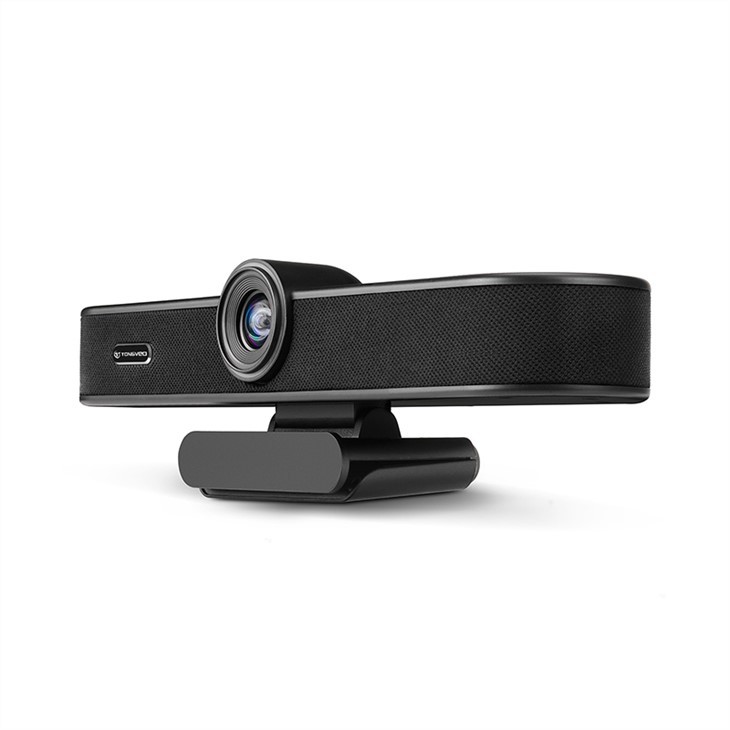
Hey there! As a supplier of 4K All - in - one Video Bars, I know how crucial it is to keep your device's firmware up - to - date. Firmware updates can bring a whole bunch of benefits, like better performance, new features, and enhanced security. So, let's dive into how you can update the firmware of your 4K All - in - one Video Bar.
Why Update the Firmware?
Before we get into the how - to, let's quickly talk about why you should bother updating the firmware. New firmware versions often come with bug fixes. You know those annoying glitches that sometimes pop up during a video call? A firmware update can get rid of them.
It also adds new features. Maybe your Video Bar didn't have a particular background blur effect before, but a firmware update could bring that cool feature to your device. And let's not forget about security. With the increasing number of cyber threats, keeping your firmware updated helps protect your device and your privacy during video conferences.
Prerequisites
First things first, you need to make sure you've got everything in place before starting the firmware update.
- Stable Internet Connection: A reliable Wi - Fi or Ethernet connection is a must. You don't want the update to fail halfway through because of a weak signal.
- Power Supply: Keep your Video Bar connected to a power source. Running out of battery during the update can cause serious problems, like bricking your device.
- Check Compatibility: Make sure the firmware you're about to install is compatible with your specific model of the 4K All - in - one Video Bar. You can usually find this information on the manufacturer's website.
Step - by - Step Guide to Firmware Update
Step 1: Check for Updates
The first step is to find out if there's a new firmware version available for your Video Bar. Most 4K All - in - one Video Bars have a built - in update feature. You can access this through the device's settings menu.
If you're using a software application that's paired with your Video Bar, it might also have an option to check for firmware updates. For example, some Video Bars come with a dedicated app that you can install on your computer. Open the app, go to the settings section, and look for the "Check for Updates" button.
If you can't find the update option in the device or app settings, head over to the manufacturer's website. Look for the support or downloads section. Enter your device's model number, and you should be able to see if there are any available firmware updates.
Step 2: Download the Firmware
Once you've confirmed that there's a new firmware version available, it's time to download it. If you're using the device's built - in update feature, it might start downloading the firmware automatically after you click "Check for Updates."
If you're downloading from the manufacturer's website, click on the download link for the firmware file. Make sure to save the file in a location where you can easily find it later, like your desktop or a dedicated downloads folder.

Step 3: Prepare the Update
Before you start the actual update process, you need to make sure your Video Bar is ready. Turn off any other devices that might interfere with the update, like other Wi - Fi routers or Bluetooth devices.
If your Video Bar has a removable storage device, like an SD card, make sure it's properly inserted and has enough space. Some firmware updates might require additional storage space to complete the installation.
Step 4: Install the Firmware
Now comes the main part - installing the firmware. There are a few different ways to do this, depending on your device.
- Automatic Installation: If you used the device's built - in update feature or the app to download the firmware, it might start the installation process automatically after the download is complete. Just follow the on - screen instructions. Usually, you'll need to confirm that you want to install the update and then wait for the process to finish.
- Manual Installation: If you downloaded the firmware from the manufacturer's website, you'll need to do a manual installation. Connect your Video Bar to your computer using a USB cable. Open the folder where you saved the firmware file. Copy the file to the root directory of your Video Bar's storage.
Once the file is copied, disconnect the USB cable and turn off your Video Bar. Wait for a few seconds, then turn it back on. The Video Bar should detect the new firmware file and start the installation process. Follow the on - screen instructions to complete the installation.
Step 5: Wait for the Update to Finish
The installation process can take some time, depending on the size of the firmware update and the speed of your device. Don't turn off your Video Bar or disconnect it from the power source during this time. You might see a progress bar on the device's screen or in the app, showing you how far along the update is.
Once the update is complete, your Video Bar will usually restart automatically. Wait for it to boot up again, and you're good to go!
Troubleshooting
Sometimes, things don't go as smoothly as we'd like. Here are some common issues you might encounter during the firmware update process and how to fix them.
- Update Failed: If the update fails, the first thing to do is check your internet connection. Make sure it's stable and strong. You can also try restarting your Video Bar and the device you're using to download the firmware (like your computer). If the problem persists, contact the manufacturer's support team for further assistance.
- Device Not Recognized: If your computer doesn't recognize your Video Bar when you connect it via USB, try using a different USB cable or port. You can also try updating the drivers for your Video Bar on your computer. Go to the manufacturer's website and look for the driver downloads section. Download and install the latest drivers for your device.
- Error Messages: If you see an error message during the update process, take a screenshot of it if possible. Then, head over to the manufacturer's support forum or website. Search for the error message to see if other users have had the same problem and how they fixed it. If you can't find a solution, contact the support team and provide them with the error message and any other relevant information.
Other Related Products
If you're interested in other video conferencing solutions, we also offer some great products. Check out our 4K UHD Video Bar, which provides high - quality 4K video for your meetings. It's got a great camera and built - in audio features.
We also have the HD Webcam with Speakerphone and Mic for Video Conferencing and Online Meetings. This webcam is perfect for those who need a reliable and affordable option for video calls.
And if you're looking for a more comprehensive solution, our All in One Conference Camera is a great choice. It combines a camera, speakerphone, and microphone all in one device, making it easy to set up for any video conference.
Conclusion
Updating the firmware of your 4K All - in - one Video Bar is an important task that can improve your device's performance, add new features, and enhance security. By following the steps outlined in this guide, you should be able to update the firmware without any major issues.
If you have any questions or need further assistance with the firmware update process or any of our products, don't hesitate to reach out. We're here to help you make the most of your video conferencing experience. Whether you're a small business owner, a remote worker, or part of a large corporation, our 4K All - in - one Video Bars can provide you with high - quality video and audio for your meetings.
If you're interested in purchasing our products or learning more about them, we'd love to have a chat with you. Contact us to start a procurement discussion and find out how our Video Bars can meet your specific needs.
References
- Manufacturer's user manual for the 4K All - in - one Video Bar
- Manufacturer's website support and downloads section





