

A webcam is a video camera that captures live video and audio data that can be transmitted over the internet in real-time or stored for later playback. Webcams are commonly used for video conferencing, video chatting, live streaming, and security surveillance. They are typically small and clip onto the top of a computer monitor or laptop screen, but can also be standalone devices that connect to a computer via USB or other ports. Many modern laptops and mobile devices come with built-in webcams.
Why Choose Us
Quality Control
Shenzhen Tongveo Innovation Technology Co., Ltd has a professional quality inspection team that strictly controls the quality of their products. The company has also obtained various certifications such as CE, RoHS, and FCC.
Innovation
The company is committed to innovation, with a dedicated team of engineers and designers who work to create new and advanced products that meet the needs of customers.
Rich Experience
The company has over 10 years of experience in the field of electronic products and specializes in the research, development, and production of smart electronics.
Superior Technology
Shenzhen Tongveo Innovation Technology Co., Ltd invests significantly in research and development, ensuring that their products incorporate the latest and most advanced technology.

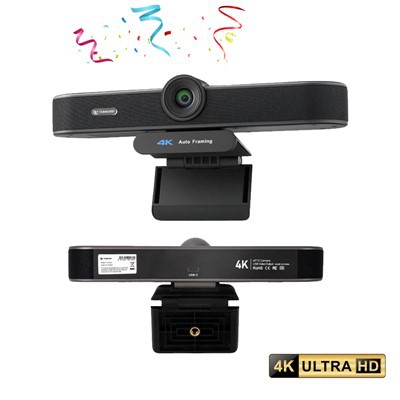


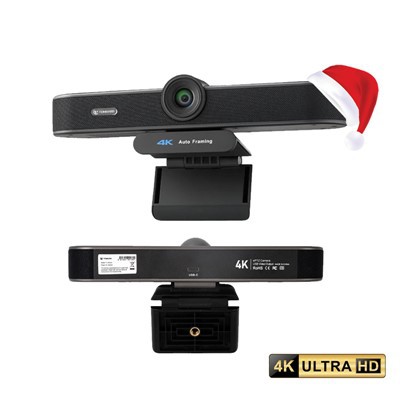


Advantages of Webcam
1. Communication: Webcam allows for face-to-face communication regardless of location.
2. Collaborative learning: Webcam provides opportunities for remote students to participate in classes and collaborate with their peers.
3. Remote work: Webcam helps people work from remote location and still participate in video conferences and meetings.
4. Low cost: Webcams are affordable and can be connected to any computer.
5. Versatile: Webcams can be used for multiple purposes such as online teaching, gaming, live streaming, video recording, and video conferencing.
6. Easy integration: Webcams can easily integrate with different software and applications.
7. Enhanced learning: Webcam facilitates interactive and experiential learning.
8. Increased engagement: Webcam enhances engagement with social media friends.
9. Increased productivity: Webcams enable remote employees to maximize their productivity.
10. Improved customer service: Webcam helps companies to enhance customer experience.

Webcams have a significant role to play in the digital world, particularly in the era of remote working and online communication. Here are some of the main roles of webcams:
1. Video Conferencing: With the rise of remote work and virtual meetings, webcams have become an essential tool for video conferencing, allowing colleagues and teams to connect visually from different locations.
2. Remote Teaching: Webcams have also played a significant role in remote education, enabling teachers and professors to conduct online classes and interact with students visually.
3. Live Streaming: Webcams also play a significant role in the world of live streaming. Whether it's streaming live events, game streaming, or social media live streaming, webcams allow users to share their experiences in real-time.
4. Security: Webcams can also be used for security purposes, such as monitoring homes, offices, or public areas. With the help of web cameras, users can monitor and record footage remotely from their digital devices.
Understanding the Importance of Webcam
Webcams are an essential component in today's digital world, particularly due to the rise of remote work and online communication. They provide various benefits, including:
Video conferencing
Webcams enable individuals and groups to communicate face-to-face via video conferencing apps like Zoom, Skype, and Google Meet. This feature enables individuals to interact as if they were in the same room, promoting collaboration and interpersonal connections.
Remote work
With the pandemic, remote work has become the norm. Webcams enable remote workers to participate in meetings, collaborate with team members, and attend interviews from the comfort of their homes.
Education
With online learning platforms, webcams allow teachers and students to interact virtually, promoting student engagement and better learning outcomes. It also enables students to attend classes remotely.
Security
Webcams serve as a form of surveillance, allowing individuals to keep an eye on their homes or businesses while they are away.
How to Choose a Webcam
Resolution: Look for a webcam with a resolution of at least 720p or higher for clear and sharp video quality.
Frame rate: A higher frame rate like 30 fps will give you smooth video quality and prevent lagging or choppiness.
Autofocus and image quality: Look for a webcam with autofocus and good image quality to ensure that your video stays in focus and doesn't have any blurriness.
Compatibility: Check if the webcam is compatible with your computer's operating system and applications.
Microphone: If you need to use your webcam to record videos, it's important to have a good microphone to capture clear and crisp audio.
Price: Determine your budget and choose a webcam that has the features you need within that range.
Brand reputation: Choose a well-known and reliable brand to ensure that the webcam will last and provide you with consistent performance.
Proper Maintenance of Webcam
1. Keep it clean: Regularly clean the lens with a soft, dry cloth to ensure clear output from the webcam.
2. Avoid exposure to direct sunlight: Avoid placing the webcam in direct sunlight or under bright lighting conditions to prevent damage to the device.
3. Protect from moisture: Keep the webcam dry and avoid exposure to moisture or water.
4. Ensure proper ventilation: Do not cover the webcam or its vents during use, as this may cause the device to overheat.
5. Regular updates: Regularly update the software and drivers for the webcam to ensure proper functioning.
6. Safe storage: Properly store the device when not in use to prevent damage or wear and tear.
7. Avoid dropping: Handle the webcam with care and avoid dropping it as this can damage the device.
8. Use a surge protector: Use a surge protector to protect the webcam from power surges and electrical damage.
9. Disconnect when not in use: Disconnect the webcam from the computer when not in use to prevent damage from accidental power surge or data loss.
10. Check cables and connections: Regularly check the cables and connections to ensure they are secure and in good condition. Replace any damaged cords or USB cables immediately to prevent further damage to the webcam.
Types of Webcam
Built-in webcam
Most laptops and all-in-one computers come with a built-in webcam, which is typically located near the top of the screen.
01
USB webcam
A USB webcam is an external camera that connects to a computer via a USB port. They come in different sizes and styles and are widely available.
02
Wireless webcam
A wireless webcam connects to a computer via Wi-Fi or Bluetooth instead of a physical cable. They are convenient for those who don't want to deal with wire clutter or want to use their webcam on multiple devices.
03
Portable webcam
Portable webcams are small and lightweight cameras that can be connected to a laptop or desktop computer as needed. They are also known as "travel webcams" and are ideal for people who frequently travel for work or leisure.
04
360-degree webcam
A 360-degree webcam captures images from all angles and allows users to pan, zoom, and tilt the camera remotely. They are ideal for video conferencing, virtual tours, and live streaming events.
05
Turn off the webcam and unplug it from the computer or USB port.
Clean the webcam with a soft, lint-free cloth to remove any dust or debris.
If the webcam came with a protective cover or case, use it to cover the lens and keep it safe from scratches or damage.
If the webcam does not have a protective cover or case, wrap it in a soft cloth or bubble wrap to protect it from any bumps or scratches.
Store the webcam in a cool, dry place away from direct sunlight and extreme temperatures.
Keep the webcam in an upright position to avoid any potential damage to the lens or hardware.
Consider storing the webcam in its original packaging to keep it safe and organized, especially if you plan to store it for a long time or during travel.
How To Clean Webcam
Here are the steps to clean your webcam:
Turn off your computer and unplug any external devices that are connected to it.
Use a soft, dry cloth to gently wipe the surface of the webcam.
If there is stubborn debris or dirt on the webcam, you can use a microfiber cloth or a cleaning solution specifically designed for electronic screens to remove it. Apply the cleaning solution to the cloth and then gently wipe the webcam.
For smaller crevices or hard-to-reach areas of the webcam, you can use a soft-bristled brush to remove any debris.
Do not use harsh chemicals or abrasive materials, as they can scratch or damage the webcam.
After cleaning the webcam, allow it to dry completely before plugging it back in and turning on your computer.
Here are some considerations for buying a webcam:


1. Video Quality: This is paramount while buying a webcam. You should go for a webcam that can provide you 1080p or 4K videos for a clear and crisp video quality.
2. Compatibility: Make sure to examine your computer system and the requirements of the webcam before you make a purchase. It’s imperative to ensure compatibility and avoid compatibility-related issues.
3. Frame Rate: Depending on your intended use, you should go for a webcam that offers a high frame rate. If you'll use the webcam mainly for video conference calls, then 30 fps is suitable though gamers prefer webcams with 60fps to achieve smooth gameplay.
4. Field of View: A wide field of view allows you to capture more background information or people in the video. So, choose a webcam that has a broader field of view according to your requirement.
5. Privacy: A good webcam should not compromise your privacy. Look for a webcam with a sliding cover or other protective features to ensure your privacy is secured.
6. Budget: You should consider the amount you are willing to spend to avoid over-buying. Webcam prices significantly vary according to their features and quality.
7. Audio Quality: Audio is as important as video. So, choose a webcam that has an inbuilt quality microphone or opt to buy a separate microphone for better audio recording.
8. Brand and Reviews: Research the market and opt for a reliable brand. Additionally, read online reviews or ask for recommendations from friends who have used the product before.
Webcam technology has found many applications in various fields, including but not limited to:
1. Video conferencing - Webcam technology has revolutionized video conferencing, making it possible for people to communicate face-to-face regardless of their location.
2. Online education - Webcams can be used to facilitate distance learning, enabling students to attend virtual classes from anywhere in the world.
3. Security - Webcams can be used for surveillance and security purposes, allowing users to monitor their homes, offices, and other premises remotely.
4. Entertainment - Webcams are widely used for entertainment purposes, such as online gaming, live streaming, and social media sharing.
5. Telemedicine - Webcams can be used in telemedicine to enable remote consultations between doctors and patients, providing healthcare access to people in rural or remote areas.


6. Personal communication - Webcams allow users to stay connected with friends and family members through video calls and video chats.
7. Live events - Webcams can be used to broadcast live events such as concerts, sports activities, and other performances to audiences worldwide.
8. Research - Webcams can be used in research to study animal behavior, analyze traffic patterns, monitor weather conditions, and conduct other scientific studies.
9. Online shopping - Webcams can be used to provide customers with a "virtual try-on" experience when shopping for clothes, cosmetics, and other products.
10. Quality control - Webcams can be used in manufacturing and production processes for quality control purposes, allowing operators to monitor production lines and detect defects in real-time.
Materials for Webcam
Image sensor: This is the most important component of a webcam as it captures the video. CMOS and CCD sensors are commonly used in webcams.
Lens: The lens focuses the image onto the sensor, and its quality determines the clarity and sharpness of the image.
Microphone: Most webcams have built-in microphones that can capture audio.
USB cable: Webcams are typically connected to the computer through a USB connection.
Mounting clip or stand: A webcam needs to be sturdy and stable to capture steady footage. A mounting clip or stand allows you to attach the camera to a table or monitor.
LED lights: Some webcams have LED lights that help improve the quality of the image in low light conditions.
Circuit board: The circuit board houses the electronic components of the webcam, including the image sensor and microphone.
Control circuitry: The control circuitry manages the webcam's functions and allows the user to adjust settings such as brightness, contrast, and zoom.
Casing: The casing protects the internal components and gives the webcam a professional appearance.
Software: Most webcams require software to be installed on the computer for them to function properly. This software can include drivers, applications, and firmware updates.
Does the Webcam need to install a driver?
It depends on the operating system being used and the type of webcam. Some webcams may require a driver to be installed for proper functioning, while others may be plug-and-play and require no additional drivers. It is always best to check the manufacturer's website for specific information about the webcam and any necessary drivers.

Our Factory
Tongveo is a R&D based manufacturer committed to designing, developing and producing affordable full HD video camera with stunning image quality for video collaboration, applied in video conferencing, audio conferencing, education, tele-medicine, broadcasting, recording, courtroom, public safety, church, live-event, Financial facility solution etc.

Certificates

FAQ
Q: What is a webcam?
Q: How can I set up a webcam?
Q: Can I use a webcam for video conferencing?
Q: What features should I consider when buying a webcam?
Q: Do I need additional software to use a webcam?
Q: Can I use multiple webcams at once?
Q: What should I do if my webcam is not working?
Q: Can anyone see you through webcam?
Q: What does a webcam allow you to do?
Q: How do I check to see if my webcam is working?
Q: Do webcams record when not in use?
Q: Should you look into webcam?
Q: Can I use my phone as a webcam?
Q: Can webcam be on without computer?
Q: What is the best way to set up a webcam?
Q: Does my webcam have a microphone?
Q: How do I check my webcam settings?
1. Select Start .
2. Type manage cameras in the search bar on the Start menu, and then select Manage cameras from the results.
3. Select the camera from the list of connected cameras.
4. Windows will start the camera, display a preview, and show controls to adjust various settings.
Q: What is the difference between a webcam and a normal camera?
Q: What equipment is needed to webcam?
Q: How do I test my webcam sound?
We're well-known as one of the leading webcam manufacturers and suppliers in China. Please feel free to buy high-grade webcam made in China here from our factory. Quality products and low price are available.
USB webcam for video conferencing, , micro camera