

How to troubleshoot if a 4K USB webcam is not working?
Leave a message

Hey there! I'm from a 4K USB webcam supplier, and I know how frustrating it can be when your webcam isn't working. In this blog, I'll walk you through some common issues and how to troubleshoot them.

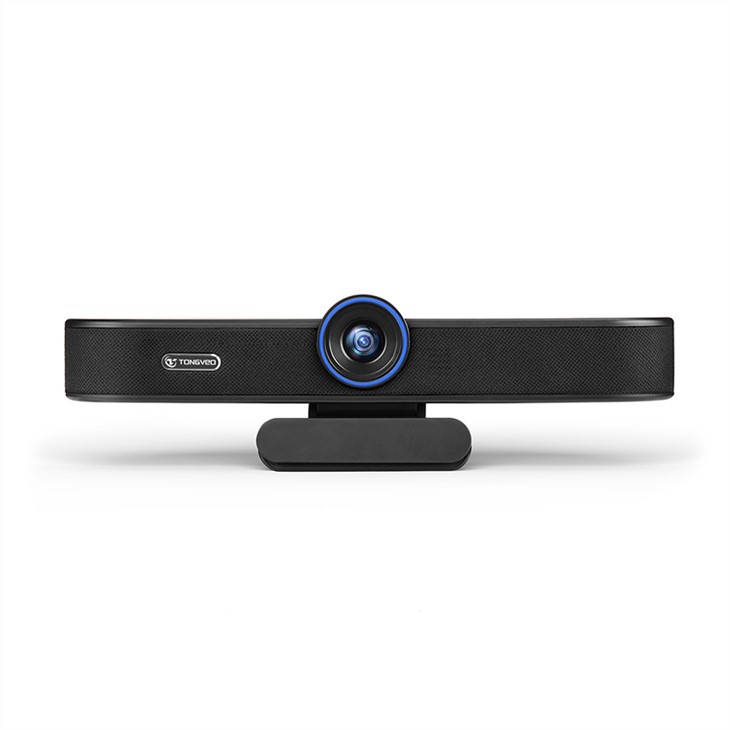
Check the Basics
First things first, let's start with the simple stuff. Make sure your webcam is properly connected to your computer. Plug the USB cable firmly into your computer's USB port. Sometimes, a loose connection can cause all sorts of problems. If you're using a USB hub, try plugging the webcam directly into your computer. USB hubs can sometimes draw too much power or have compatibility issues.
Also, check if the webcam's power indicator is on. Most 4K USB webcams have a small LED light that shows whether they're getting power. If the light isn't on, the webcam might not be getting enough power. You can try using a different USB port or a powered USB hub.
Update Your Drivers
Outdated drivers are a common culprit when it comes to webcam problems. Drivers are like little programs that tell your computer how to communicate with the webcam. To update your drivers, follow these steps:
- On Windows, go to the Device Manager. You can usually find it by right - clicking on the Start button and selecting it.
- Expand the "Imaging devices" or "Cameras" category.
- Right - click on your webcam and select "Update driver."
- Choose "Search automatically for updated driver software." Windows will then look for the latest drivers on the internet and install them if available.
On a Mac, things are a bit simpler. Just go to the App Store and check for any software updates. Apple usually includes webcam driver updates as part of its system updates.
Adjust Your Privacy Settings
Sometimes, your computer's privacy settings can block the webcam from working. On Windows, go to "Settings" > "Privacy" > "Camera." Make sure the toggle switch next to "Allow apps to access your camera" is turned on. You can also manage which apps have access to the camera here.
On a Mac, go to "System Preferences" > "Security & Privacy" > "Privacy" tab. Click on "Camera" in the left sidebar and make sure the apps you want to use the webcam with are checked.
Check Your Software Compatibility
Not all software is compatible with 4K webcams. Some older applications might not support the high - resolution capabilities of a 4K webcam. If you're having trouble using the webcam with a specific app, try using it with a different one. For example, if you're having issues with an old video conferencing app, try using a more modern one like Zoom or Microsoft Teams.
You can also check the app's settings to see if there are any options related to the webcam. Some apps allow you to choose the camera resolution or adjust other settings. Make sure the app is set to use your 4K webcam and that the resolution is set to 4K if possible.
Hardware Issues
If you've tried all the above steps and the webcam still isn't working, there might be a hardware problem. Check the webcam for any physical damage, such as a cracked lens or a broken cable. If you find any damage, it might be time to replace the webcam.
You can also try testing the webcam on a different computer. If it works on another computer, the problem is likely with your original computer. If it doesn't work on any computer, then there's probably a hardware issue with the webcam itself.
Recommended Products
We offer a range of high - quality 4K USB webcams that are designed to work flawlessly. Check out our High - Definition Wide - Angle Webcam for Conference and Desktop Use. It's perfect for both conference rooms and desktop use, with a wide - angle lens that captures everything.
Our HD Webcam with Speakerphone and Mic for Video Conferencing and Online Meetings is another great option. It comes with a built - in speakerphone and microphone, making it ideal for video conferencing.
And if you're looking for a webcam for a conference room, our Conference Room Webcam with Microphone and Speakerphone for Live Streaming and Zoom is a top - notch choice. It has excellent audio and video quality, perfect for live streaming and Zoom meetings.
Contact Us for Purchasing
If you're experiencing persistent problems with your 4K USB webcam or if you're interested in purchasing one of our high - quality products, we're here to help. Reach out to us for more information and to start a purchasing discussion. We can provide you with detailed product specifications, pricing, and any other details you need.
References
- Windows Support Documentation
- Apple Support Documentation
- General Knowledge of 4K USB Webcam Technology





