

How to configure the communication settings of a PTZ Keyboard Controller?
Leave a message

Alright, folks! As a supplier of PTZ Keyboard Controllers, I know that configuring the communication settings of these nifty devices can be a bit of a head - scratcher for some. But don't worry, I'm here to walk you through the process step by step.
Understanding the Basics
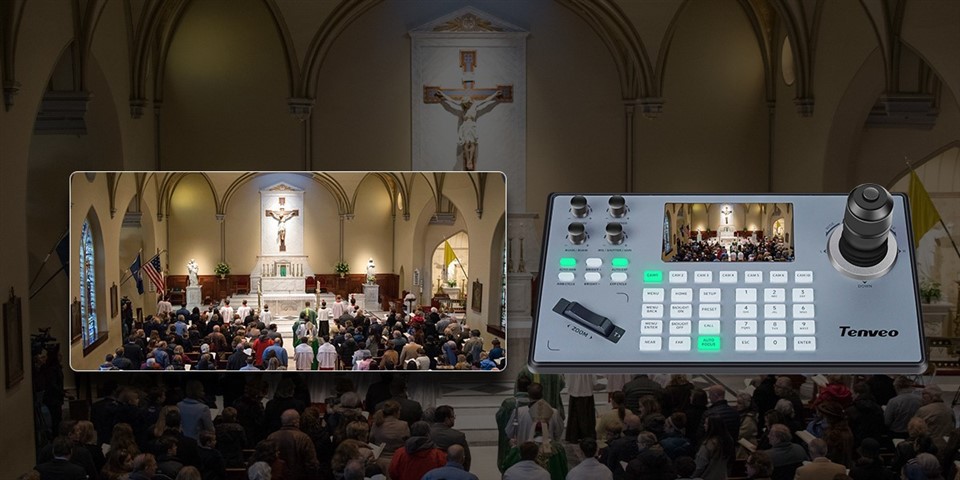
First off, let's understand why we even need to configure the communication settings. A PTZ (Pan - Tilt - Zoom) Keyboard Controller is used to control PTZ cameras remotely. It sends commands to the cameras to move left or right (pan), up or down (tilt), and to zoom in or out. For these commands to reach the cameras correctly, the communication settings between the keyboard controller and the cameras need to be in sync.
Step 1: Check the Physical Connections
Before diving into the software settings, make sure all the physical connections are good. Connect the PTZ Keyboard Controller to the PTZ cameras either through an appropriate cable (like RS - 485 or Ethernet cable depending on your setup). For Ethernet connections, ensure that both the controller and the camera are on the same local network. If you're using an RS - 485 connection, double - check the wiring to avoid any signal issues.
Step 2: Determine the Communication Protocol
Most PTZ devices support common communication protocols such as Pelco - D or Pelco - P. These protocols act as a sort of language that the controller and the cameras use to talk to each other. You can usually find the supported protocols in the user manual of your PTZ camera.
If you're dealing with a Pelco Ptz Controller, it likely comes pre - configured with support for Pelco protocols. But you still need to make sure the camera is set to the same protocol. To change the protocol on the keyboard controller, look for a menu option related to "Protocol" or "Communication Settings". Select the appropriate protocol that matches your camera.
Step 3: Set the Baud Rate
The baud rate is another crucial setting. It determines how fast data is transmitted between the controller and the camera. Common baud rates include 9600, 19200, etc. Just like the protocol, the baud rate on the controller and the camera must match.
On the PTZ Keyboard Controller, find the "Baud Rate" setting. Scroll through the available options until you find the one that matches your camera's setting. If you're not sure what the camera's baud rate is, check its user manual or default factory settings. Setting an incorrect baud rate can lead to data transmission errors, making the controller unable to communicate properly with the camera.
Step 4: Configure the Address
Each PTZ camera needs to have a unique address if you're using multiple cameras on the same network. Think of the address as a phone number. The controller needs to know exactly which "phone number" (camera address) to call to send its commands.
On the PTZ Keyboard Controller, there will be an option to set the camera address. For example, if you have three cameras, you might set their addresses as 1, 2, and 3 respectively. Make sure these addresses are also set correctly on the cameras themselves. You can usually do this through the camera's menu settings.

Step 5: Test the Connection
Once you've configured all the settings, it's time to test if the communication is working. On the PTZ Keyboard Controller, use the control buttons to send commands to the camera. Try panning the camera left and right, tilting it up and down, and zooming in and out.
If the camera doesn't respond, don't panic. Double - check all the settings you've made. Make sure the protocol, baud rate, and address are correct on both the controller and the camera. Also, verify the physical connections again.
Special Considerations for IP - Based Systems
If you're using an Ip Ptz Camera Keyboard Controller or an IP Ptz Camera Controller, the process is a bit different.
Network Configuration
First, you need to ensure that both the controller and the IP cameras are on the same subnet. You may need to configure the IP addresses, subnet masks, and gateways on both devices. On the controller, go to the network settings menu and enter the appropriate IP information.
Camera Discovery
Most IP - based PTZ Keyboard Controllers have a camera discovery feature. This allows the controller to automatically find all the IP cameras on the network. Simply initiate the discovery process on the controller, and it will search for available cameras. Once the cameras are discovered, you can assign addresses and configure other settings as needed.
Troubleshooting Tips
- No Communication at All: If the controller and the camera don't communicate at all, check for loose cables, incorrect IP settings (for IP - based systems), or wrong protocol/baud rate/address settings.
- Intermittent Communication: This could be due to electrical interference, especially if you're using RS - 485 connections. Try using shielded cables and keeping the cables away from sources of interference like power lines.
- Incorrect Camera Movement: If the camera moves in the wrong direction or doesn't move smoothly, it might be a calibration issue. Some PTZ Keyboard Controllers have a calibration option that you can use to correct this.
Conclusion
Configuring the communication settings of a PTZ Keyboard Controller might seem complicated at first, but with a bit of patience and following these steps, you'll have your system up and running in no time. Whether you're using traditional RS - 485 - based systems or modern IP - based ones, getting the communication settings right is key to a smooth - functioning PTZ camera control setup.
If you're in the market for a high - quality PTZ Keyboard Controller or have any questions about the configuration process, don't hesitate to reach out. We're here to help you make the most out of your PTZ camera system and ensure seamless communication between your controller and cameras. Let's have a chat about your requirements and see how we can assist you in getting the perfect setup for your needs.
References
- PTZ Camera Manufacturer User Manuals
- PTZ Keyboard Controller User Guide





