

How to set up presets on a PTZ Keyboard Controller?
Leave a message

Setting up presets on a PTZ (Pan-Tilt-Zoom) keyboard controller can significantly enhance the efficiency and functionality of your surveillance system. As a trusted PTZ Keyboard Controller supplier, I am here to guide you through the process step by step. In this blog post, we'll cover everything you need to know about setting up presets on your PTZ keyboard controller, from understanding the basics to advanced configuration options.
Understanding PTZ Presets
Before we dive into the setup process, let's first understand what PTZ presets are and why they are important. PTZ presets are pre - defined positions that you can save on your PTZ camera. These positions can include specific pan, tilt, and zoom settings. Once you've saved a preset, you can quickly recall it using your PTZ keyboard controller. This is incredibly useful in surveillance scenarios where you need to quickly focus on a particular area or object.
Prerequisites
Before you start setting up presets, make sure you have the following:
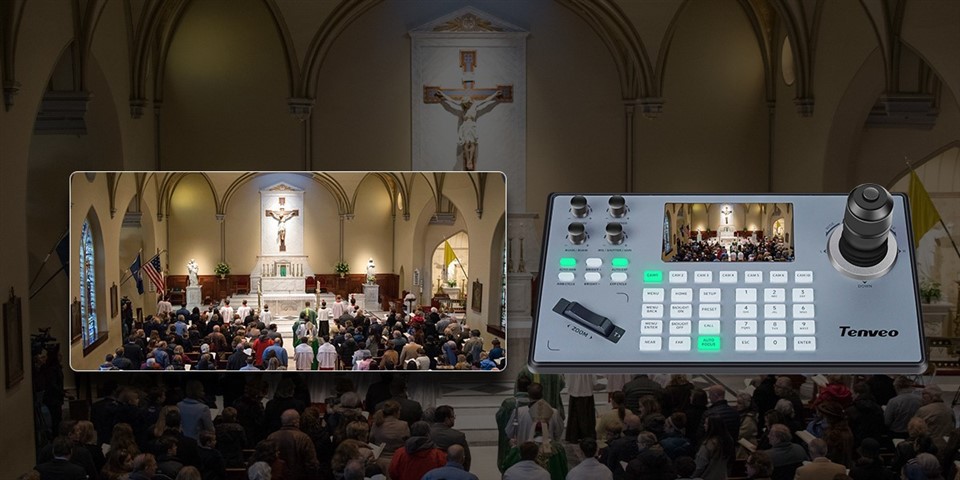
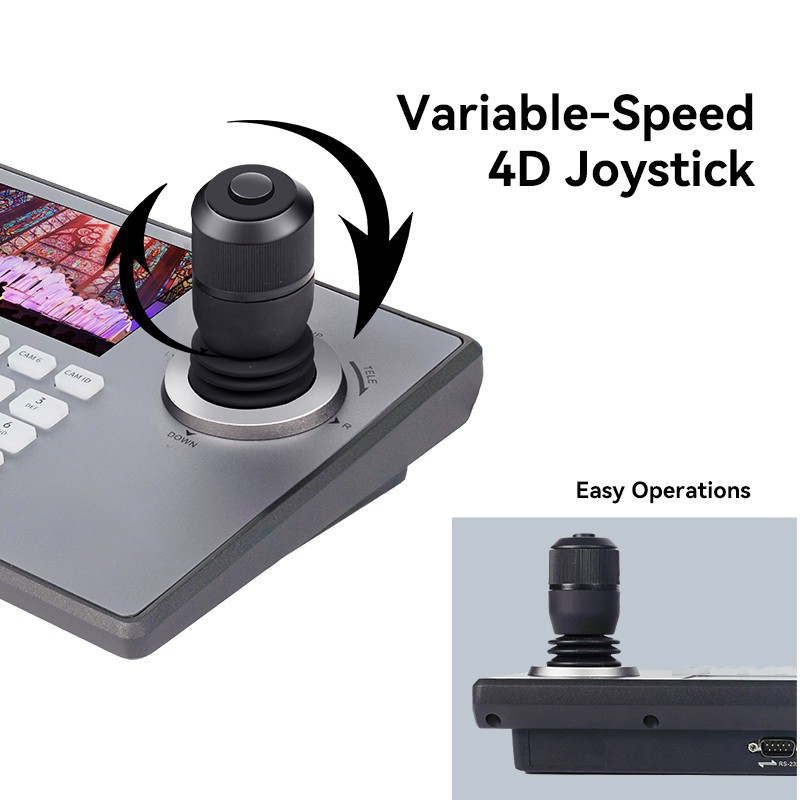
- A PTZ camera that is compatible with your keyboard controller.
- A properly connected PTZ keyboard controller. This usually involves connecting the controller to the camera via a network cable or a serial connection, depending on the type of camera and controller.
- Basic knowledge of the camera's protocol. Different cameras use different communication protocols such as Pelco - D, Pelco - P, etc. Your keyboard controller needs to be configured to use the same protocol as your camera.
Step 1: Connect and Power On
First, ensure that your PTZ camera and keyboard controller are both powered on. Connect the keyboard controller to the camera using the appropriate cable. If you are using an IP - based system, connect both the camera and the controller to the same local network. For serial - based systems, connect the controller to the camera's serial port.
Step 2: Enter Programming Mode
Most PTZ keyboard controllers have a programming mode that allows you to configure presets. To enter this mode, look for a "Program" or "Setup" button on your controller. Press this button to enter the programming menu.
Step 3: Select the Camera
Once you are in the programming mode, you need to select the camera for which you want to set up presets. This is usually done by using the number keys on your keyboard controller to enter the camera's address. Each camera on the system is assigned a unique address. If you are unsure of the camera's address, refer to the camera's manual.
Step 4: Position the Camera
Use the joystick or directional buttons on your keyboard controller to move the camera to the desired position. You can pan the camera left or right, tilt it up or down, and zoom in or out as needed. Take your time to get the perfect view that you want to save as a preset.
Step 5: Save the Preset
After you have positioned the camera, it's time to save the preset. Look for a "Preset" or "Save" button on your controller. Press this button, and then use the number keys to assign a number to the preset. For example, if you press "1" after the "Save" button, you are saving the current camera position as Preset 1.
Step 6: Test the Preset
Once you have saved the preset, exit the programming mode by pressing the "Exit" or "Cancel" button on your controller. To test the preset, simply press the number of the preset you just saved. The camera should quickly move to the position you previously saved.
Advanced Preset Configuration
Some PTZ keyboard controllers offer advanced preset configuration options. For example:
- Preset Tour: You can set up a preset tour, which is a sequence of presets that the camera will automatically cycle through. To set up a preset tour, enter the programming mode again, select the "Preset Tour" option, and then add the presets you want to include in the tour.
- Speed Control: You can also configure the speed at which the camera moves between presets. This can be adjusted in the programming menu under the "Speed" or "Motion" settings.
Troubleshooting
If you encounter any issues while setting up presets, here are some common problems and solutions:
- Preset Not Saving: This could be due to a communication problem between the controller and the camera. Check the connections and make sure the camera's protocol is correctly configured on the controller.
- Camera Not Moving to Preset: This might be because the preset was not saved correctly. Try saving the preset again. Also, check if the camera is physically able to move to the preset position (e.g., there might be an obstruction).
Our PTZ Keyboard Controller Offerings
As a PTZ Keyboard Controller supplier, we offer a wide range of high - quality controllers to meet your needs. Our IP Ptz Camera Controller is perfect for IP - based surveillance systems. It provides seamless integration with various IP cameras and offers easy - to - use preset configuration options.
If you are using Pelco - compatible cameras, our Pelco Ptz Controller is an excellent choice. It is specifically designed to work with Pelco cameras and supports all the common Pelco protocols.
For those who prefer an all - in - one solution, our Ip Ptz Keyboard Controller combines the functionality of a keyboard and a controller, allowing you to easily control multiple cameras and set up presets with just a few clicks.
Contact Us for Purchase and Consultation
If you are interested in purchasing a PTZ keyboard controller or need further assistance with setting up presets, we are here to help. Our team of experts can provide you with detailed product information, technical support, and guidance on choosing the right controller for your surveillance system. Whether you are setting up a small - scale home surveillance or a large - scale commercial security system, we have the solutions for you.
References
- "PTZ Camera Installation and Configuration Guide" - Generic industry guide for PTZ camera setup.
- Manufacturer's manuals for PTZ cameras and keyboard controllers.





