

How to isolate a faulty microphone in a daisy chain setup?
Leave a message

Daisy chaining microphones is a popular setup in various audio environments, from large - scale conference rooms to live event venues. It allows multiple microphones to be connected in a series, streamlining the audio setup process and reducing cable clutter. However, one of the challenges that users often face is isolating a faulty microphone within a daisy chain. As a supplier of Daisy Chain Microphones, I've encountered numerous situations where customers struggle with this issue. In this blog post, I'll share some effective strategies to help you quickly and accurately isolate a faulty microphone in a daisy - chain setup.
Understanding the Daisy Chain Setup
Before diving into the isolation process, it's essential to understand how a daisy - chain microphone setup works. In a daisy chain, microphones are connected sequentially, with each microphone passing the audio signal to the next one in the chain. The final microphone in the chain is then connected to the audio interface or mixer. This setup is convenient as it only requires one connection to the audio source, but it can also make it difficult to pinpoint a faulty microphone.
Initial Checks
The first step in isolating a faulty microphone is to perform some basic checks. These checks are quick and can often identify simple issues without having to disassemble the entire setup.
Power and Connectivity
- Power Supply: Ensure that all microphones in the daisy chain are receiving power. Most daisy - chain microphones are powered either through USB or phantom power. Check the power source, such as the USB port or the mixer's phantom power settings. If a microphone is not getting power, it won't function correctly.
- Cable Connections: Inspect all the cables connecting the microphones. Loose, damaged, or incorrectly plugged cables can cause audio issues. Make sure that each microphone is securely connected to the next one in the chain and that the final microphone is properly connected to the audio interface.
Audio Interface and Mixer Settings
- Input Channels: Check the input channels on the audio interface or mixer. Make sure that the channels assigned to the daisy - chain microphones are enabled and have the correct gain settings. Incorrect gain settings can result in low or distorted audio.
- Mute and Solo Buttons: Verify that none of the microphones in the daisy chain are muted on the mixer. You can also use the solo function to listen to each microphone individually, which can help in isolating the faulty one.
Step - by - Step Isolation Process
If the initial checks don't reveal the problem, you'll need to follow a more systematic approach to isolate the faulty microphone.
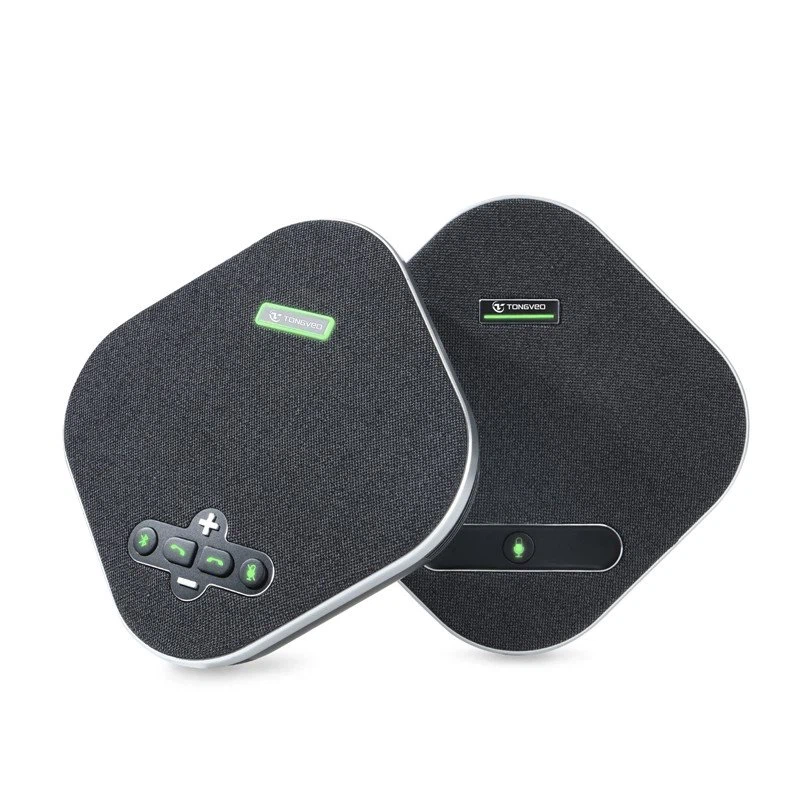
Method 1: Divide and Conquer
- Split the Chain: Start by dividing the daisy chain into two equal or approximately equal parts. Disconnect the chain in the middle and connect each part separately to the audio interface. Test each part to see if the problem persists. If the problem is present in one part but not the other, you've narrowed down the faulty section.
- Repeat the Process: Once you've identified the faulty section, repeat the division process on that section. Keep dividing the chain until you isolate the faulty microphone. This method can significantly reduce the time it takes to find the problem, especially when dealing with a long daisy chain.
Method 2: Individual Testing
- Remove One Microphone at a Time: Beginning from one end of the daisy chain, remove a single microphone from the chain and test the audio. If the problem disappears, the removed microphone is likely the faulty one. If the problem persists, put the microphone back and remove the next one in the chain.
- Note the Audio Changes: As you remove each microphone, pay close attention to any changes in the audio quality. A sudden improvement or change in the audio issue can indicate that the removed microphone is causing the problem.
Using Diagnostic Tools
In some cases, using diagnostic tools can help in isolating a faulty microphone more accurately.
Audio Testing Software
- Level and Frequency Analysis: There are various audio testing software programs available that can analyze the audio signal from the daisy - chain microphones. These programs can measure the audio level, frequency response, and other parameters. By comparing the readings of each microphone, you can identify any abnormal values that may indicate a faulty microphone.
- Signal Strength Testing: Some software can also test the signal strength of each microphone in the chain. A significantly weaker signal from a particular microphone may suggest a problem with that microphone or its connection.
Multimeter
- Electrical Continuity Test: A multimeter can be used to test the electrical continuity of the microphone cables. Disconnect the cables and use the multimeter to check if there is a continuous electrical path. If there is no continuity, the cable is likely damaged and needs to be replaced.
- Resistance Measurement: You can also measure the resistance of the microphone itself. Compare the resistance values of each microphone in the chain. A microphone with an abnormal resistance value may be faulty.
Common Faults and Solutions
- Low or No Audio Output: If a microphone has low or no audio output, it could be due to a power issue, a damaged cable, or a faulty microphone. Check the power supply, cables, and try connecting the microphone to a different port or audio interface to confirm if the problem is with the microphone.
- Distorted Audio: Distorted audio can be caused by a variety of factors, including incorrect gain settings, a damaged microphone diaphragm, or electromagnetic interference. Adjust the gain settings on the mixer, and if the problem persists, inspect the microphone for physical damage.
- Intermittent Audio: Intermittent audio is often a sign of a loose connection or a faulty cable. Check all the cable connections and try using a different cable to see if the problem is resolved.
Conclusion
Isolating a faulty microphone in a daisy - chain setup can be a challenging task, but by following the steps outlined in this blog post, you can quickly and accurately identify the problem. As a Daisy Chain Microphone supplier, we understand the importance of reliable audio equipment. Our USB Omnidirectional Conference Microphone is designed to provide high - quality audio in daisy - chain setups. If you're experiencing issues with your daisy - chain microphones or are looking to upgrade your audio equipment, we're here to help. Contact us to discuss your specific needs and explore our range of products.
References
- "Audio Engineering Handbook" by Glen Ballou
- "Microphone Techniques" by David Miles Huber





