

How to install the drivers for an HDMI conference camera?
Leave a message

Hey there! As a supplier of HDMI conference cameras, I often get asked about how to install the drivers for these nifty devices. It might seem a bit daunting at first, but trust me, it's not as hard as it sounds. In this blog, I'll walk you through the whole process step by step.

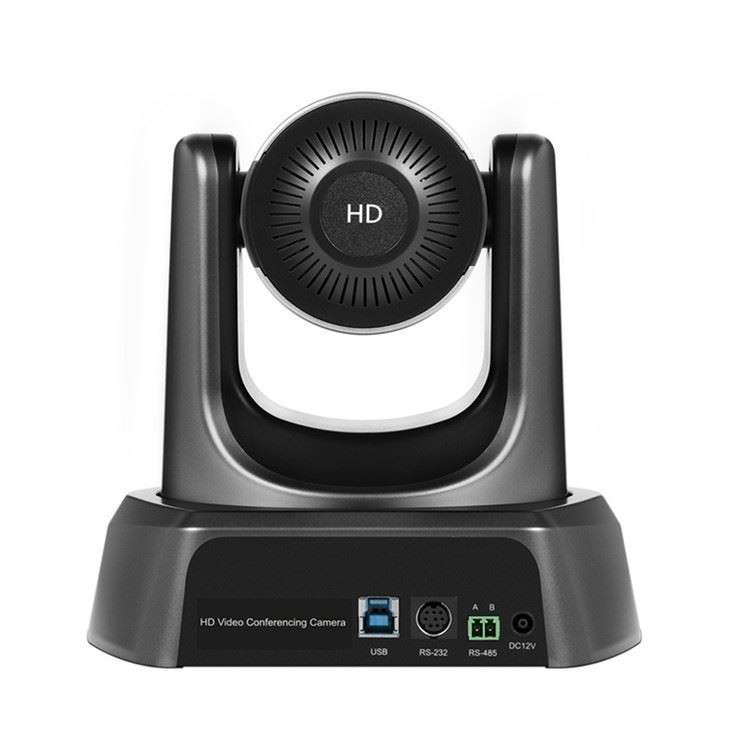
First off, let's talk about why drivers are so important. Think of drivers as the translators between your camera and your computer. They make sure that your computer can understand what the camera is doing and vice versa. Without the right drivers, your camera might not work properly, or it might not work at all. So, getting the drivers installed correctly is a crucial first step.
Step 1: Identify Your Camera Model
The very first thing you need to do is figure out which model of HDMI conference camera you have. This might seem obvious, but it's really important. Different camera models often require different drivers, so you need to make sure you're getting the right ones. You can usually find the model number on a label on the camera itself or in the user manual.
Once you've got the model number, head over to our website. We've got a wide range of HDMI conference cameras, like the Ptz Camera For Zoom Meetings and the Conference Digital Camera With Mic And Speaker For Classroom Online Remote Teaching. You can also check out our HDMI SDI HD PTZ 20x Optical Zoom Camera for Video Conference. On our website, you can find the specific drivers for your camera model.
Step 2: Download the Drivers
After you've identified your camera model, it's time to download the drivers. Go to the support section of our website and look for the driver download page. There, you'll find a list of all the available drivers for our HDMI conference cameras. Find the one that matches your camera model and click the download link.
It's a good idea to save the driver file to a location on your computer where you can easily find it later, like your desktop or a dedicated downloads folder. The download might take a few minutes, depending on your internet speed. Just be patient and let it finish.
Step 3: Prepare Your Computer
Before you start installing the drivers, it's a good idea to prepare your computer. Make sure your computer is running the latest updates for its operating system. This can help prevent any compatibility issues between the drivers and your computer. You can usually check for updates in the settings menu of your operating system.
Also, close any unnecessary programs and applications on your computer. This can free up some system resources and make the installation process go more smoothly. You don't want any other programs interfering with the driver installation.
Step 4: Install the Drivers
Now it's time to actually install the drivers. Locate the driver file you downloaded earlier and double-click on it to start the installation process. You might see a security warning pop up, asking if you want to allow the program to make changes to your computer. Just click "Yes" or "Allow" to continue.
The installation wizard will guide you through the rest of the process. It will usually ask you to accept the license agreement, choose an installation location, and so on. Just follow the prompts and click "Next" or "Install" as needed.
Once the installation is complete, you might need to restart your computer. This allows the new drivers to take effect. So, go ahead and restart your computer when prompted.
Step 5: Test Your Camera
After your computer has restarted, it's time to test your camera. Open up an application that uses the camera, like a video conferencing app or a camera app on your computer. If the camera works properly and you can see a clear image, then congratulations! You've successfully installed the drivers.
If you're having any problems, like the camera not showing up in the app or the image being blurry, don't worry. First, double-check that you downloaded and installed the correct drivers for your camera model. You can also try uninstalling the drivers and reinstalling them. If the problem still persists, you can reach out to our support team. We're always here to help you out.
Tips and Tricks
Here are a few extra tips to make the driver installation process even easier:
- Keep Your Drivers Up to Date: Just like your computer's operating system, your camera drivers need to be updated regularly. New driver updates often include bug fixes, performance improvements, and new features. So, make sure to check our website for driver updates from time to time.
- Use a Stable Internet Connection: When downloading the drivers, it's important to have a stable internet connection. A slow or unreliable connection can cause the download to fail or be incomplete, which can lead to problems during the installation process.
- Read the User Manual: The user manual that comes with your camera can be a great resource. It often has detailed instructions on how to install the drivers and troubleshoot any issues you might encounter.
Wrapping Up
Installing the drivers for an HDMI conference camera might seem a bit complicated at first, but it's really not that hard. By following these steps and tips, you should be able to get your camera up and running in no time.
If you're in the market for a new HDMI conference camera or you have any questions about our products, don't hesitate to get in touch with us. We're a leading supplier of high-quality HDMI conference cameras, and we're always happy to help you find the right camera for your needs. Whether you're using it for zoom meetings, online teaching, or any other video conferencing application, we've got the perfect camera for you. Just reach out to us and let's start a conversation about your requirements.
References
- Manufacturer's user manual for HDMI conference cameras
- Online support resources on our website





