

How to calibrate a PTZ Keyboard Controller?
Leave a message

Hey there! As a supplier of PTZ Keyboard Controllers, I often get asked about how to calibrate these nifty devices. Calibrating a PTZ Keyboard Controller is crucial to ensure that your PTZ cameras work smoothly and accurately. In this blog post, I'll walk you through the steps to calibrate a PTZ Keyboard Controller, so you can get the most out of your camera system.
Why Calibration Matters
Before we dive into the calibration process, let's quickly talk about why it's so important. A properly calibrated PTZ Keyboard Controller ensures that the commands you send from the keyboard translate accurately to the movements of the PTZ camera. This means smoother panning, tilting, and zooming, and more precise control over your camera's view. Without calibration, you might experience issues like the camera moving in the wrong direction, not moving at all, or moving too quickly or slowly.
Step 1: Check the Basics
The first step in calibrating a PTZ Keyboard Controller is to make sure that all the connections are secure. Check that the keyboard is properly connected to the camera or the control system, and that the power supply is stable. A loose connection or a power issue can cause all sorts of problems, so it's important to rule these out before you start calibrating.
Next, make sure that the camera and the keyboard are set to the same communication protocol. Most PTZ cameras support multiple protocols, such as Pelco-D or Pelco-P. You'll need to configure both the camera and the keyboard to use the same protocol for them to communicate effectively. Refer to the user manuals of your camera and keyboard for instructions on how to set the communication protocol.
Step 2: Configure the Address
Each PTZ camera has a unique address that the keyboard uses to identify it. You'll need to configure the address on both the camera and the keyboard to match. This is usually done through the menu settings of the camera and the keyboard. Again, refer to the user manuals for detailed instructions on how to set the address.
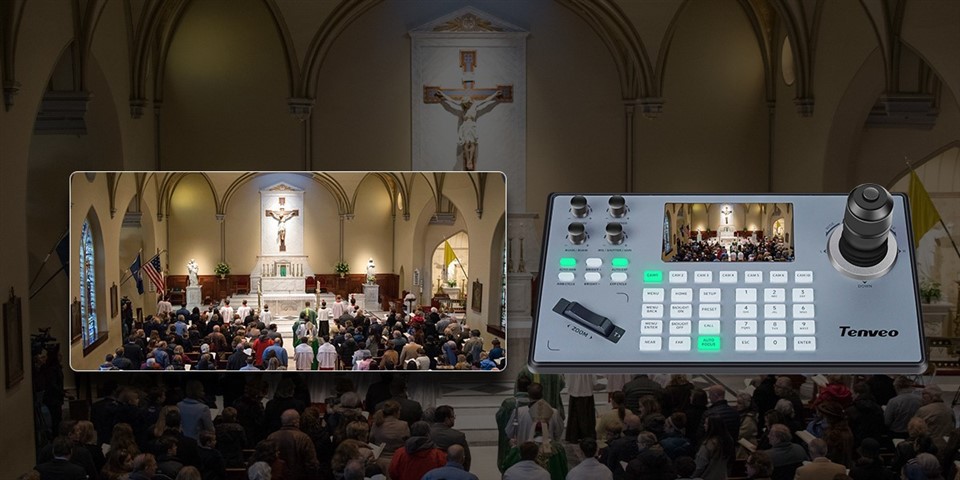

Once you've set the address, test the connection by sending a simple command, such as panning the camera left or right. If the camera doesn't respond, double-check the address settings and the communication protocol.
Step 3: Set the Speed and Sensitivity
One of the most important aspects of calibration is setting the speed and sensitivity of the camera movements. The speed determines how fast the camera pans, tilts, and zooms, while the sensitivity affects how responsive the camera is to your commands.
Most PTZ Keyboard Controllers allow you to adjust the speed and sensitivity settings through the keyboard's menu. Start by setting the speed to a moderate level and the sensitivity to a medium setting. Then, test the camera movements by using the keyboard's control buttons. If the camera moves too quickly or too slowly, adjust the speed setting accordingly. If the camera is not responsive enough or overreacts to your commands, adjust the sensitivity setting.
Step 4: Perform a Manual Calibration
In some cases, you might need to perform a manual calibration to fine-tune the camera's movements. This involves moving the camera to a known position and then using the keyboard to adjust the position until it matches the desired view.
To perform a manual calibration, first, move the camera to a reference point, such as a corner of the room or a specific object. Then, use the keyboard's control buttons to adjust the pan, tilt, and zoom settings until the camera is pointing exactly at the reference point. Once you've achieved the desired view, save the position in the keyboard's memory.
Repeat this process for several reference points to ensure that the camera's movements are accurate across the entire field of view. You can also use the keyboard's preset function to save multiple positions for quick access.
Step 5: Test and Fine-Tune
After you've completed the calibration process, it's important to test the camera's movements thoroughly. Use the keyboard to pan, tilt, and zoom the camera in different directions and at different speeds. Check that the camera moves smoothly and accurately, and that the preset positions are recalled correctly.
If you notice any issues, such as the camera moving in the wrong direction or not moving at all, go back and review the calibration steps. Double-check the connections, the address settings, the communication protocol, and the speed and sensitivity settings. Make any necessary adjustments and test the camera again until you're satisfied with the results.
Conclusion
Calibrating a PTZ Keyboard Controller might seem like a daunting task, but it's actually quite straightforward if you follow the steps outlined in this blog post. By ensuring that your PTZ Keyboard Controller is properly calibrated, you can enjoy smoother and more precise control over your PTZ cameras, and get the most out of your camera system.
If you're in the market for a high-quality PTZ Keyboard Controller, check out our Ip Ptz Camera Keyboard Controller, IP Ptz Camera Controller, and Pelco Ptz Controller. Our controllers are designed to provide reliable and precise control over your PTZ cameras, and are easy to calibrate.
If you have any questions or need further assistance with calibrating your PTZ Keyboard Controller, don't hesitate to contact us. We're here to help you get the most out of your camera system.
References
- Manufacturer's user manuals for PTZ cameras and Keyboard Controllers.
- Industry best practices for PTZ camera calibration.





