

Do daisy chain microphones work with Mac computers?
Leave a message

Daisy chaining microphones offers a convenient and efficient way to expand audio capabilities, especially in professional and multi - user settings. As a supplier of Daisy Chain Microphones, I often get asked whether these microphones work with Mac computers. In this blog, I'll delve into the technical aspects, compatibility factors, and practical considerations to provide a comprehensive answer.
How Daisy Chain Microphones Work
Before discussing their compatibility with Macs, it's essential to understand how daisy chain microphones function. Daisy chaining is a method of connecting multiple devices in a sequential manner, where one device is connected to another in a series. In the context of microphones, this allows you to connect several microphones together using a single cable connection to the computer.
The key advantage of daisy chaining microphones is that it simplifies the setup process. Instead of having multiple individual cables running from each microphone to the computer, you can connect them all in a chain and use a single connection point. This not only reduces cable clutter but also makes it easier to manage and organize your audio setup.
Compatibility with Mac Computers
Mac computers, known for their user - friendly interface and high - quality audio capabilities, generally support daisy chain microphones. However, there are several factors to consider to ensure seamless compatibility.
1. Operating System
The first factor is the Mac's operating system. Newer versions of macOS, such as macOS Big Sur, Monterey, and Ventura, have better support for a wide range of audio devices, including daisy chain microphones. These operating systems come with advanced audio drivers and improved hardware recognition capabilities.
For example, macOS Ventura has enhanced audio management features that can detect and configure multiple audio devices connected in a daisy chain more efficiently. It can automatically assign the correct audio input channels and adjust the settings for optimal performance.
2. USB and Thunderbolt Ports
Most daisy chain microphones connect to the computer via USB or Thunderbolt ports. Mac computers are equipped with both types of ports, but it's important to ensure that the microphone is compatible with the specific port type.
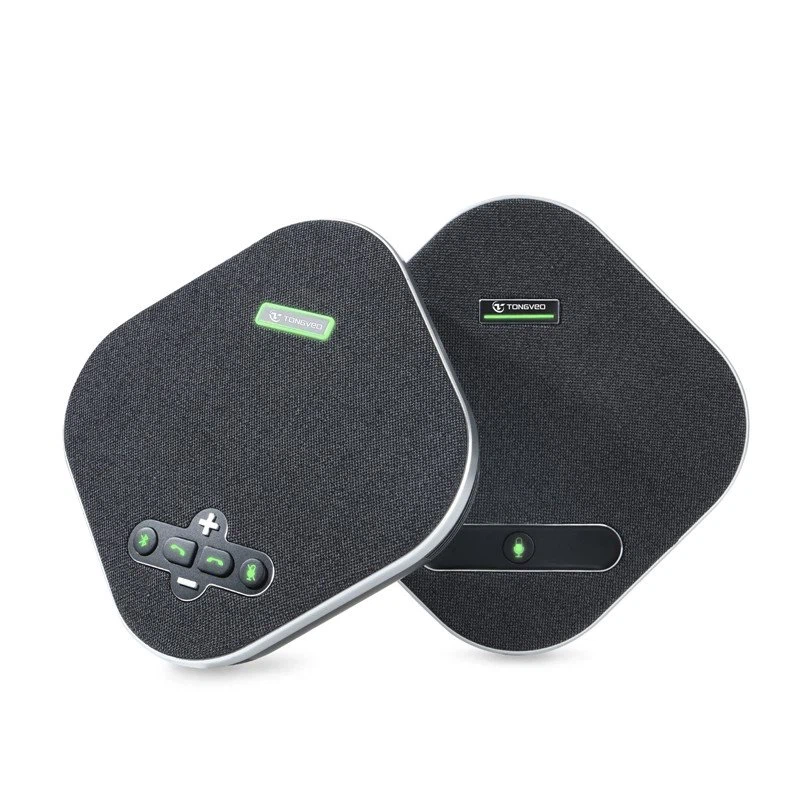
USB daisy chain microphones are more common and generally work well with Macs. They are plug - and - play devices, which means you can simply connect them to the USB port, and the Mac should recognize them automatically. For instance, our USB Omnidirectional Conference Microphone is designed to be easily connected to Macs via USB.
Thunderbolt ports, on the other hand, offer higher data transfer speeds and more power delivery. Some high - end daisy chain microphones may require Thunderbolt connections for optimal performance. However, not all Mac models have Thunderbolt ports, so it's crucial to check your Mac's specifications before purchasing a Thunderbolt - compatible microphone.
3. Audio Interface and Drivers
In some cases, daisy chain microphones may require an audio interface to work properly with a Mac. An audio interface acts as a bridge between the microphones and the computer, converting analog audio signals into digital signals that the computer can process.
Macs usually come with built - in audio drivers, but for more complex daisy chain setups, you may need to install additional drivers provided by the microphone manufacturer. These drivers can optimize the performance of the microphones, ensuring accurate audio capture and minimal latency.
Practical Considerations
When using daisy chain microphones with Mac computers, there are a few practical considerations to keep in mind.
1. Audio Settings in macOS
Once you've connected the daisy chain microphones to your Mac, you need to configure the audio settings in macOS. You can access the audio settings by going to the "System Preferences" and then selecting "Sound".
In the "Input" tab, you should see the connected daisy chain microphones listed. Select the appropriate microphone or microphone channel you want to use. You can also adjust the input volume and other audio parameters according to your needs.
2. Power Requirements
Daisy chain microphones draw power from the computer's USB or Thunderbolt ports. If you're connecting multiple microphones in a daisy chain, make sure your Mac can provide enough power to all the devices. Some Mac models may have limitations on the amount of power they can supply through their ports.
If you experience issues with power, you may need to use an external power supply for the microphones or reduce the number of microphones in the daisy chain.
3. Audio Quality and Latency
The audio quality and latency of daisy chain microphones on a Mac can be affected by several factors. The quality of the microphones themselves, the length of the cables, and the processing power of the Mac all play a role.
To ensure high - quality audio and low latency, use high - quality microphones and short cables. Additionally, close any unnecessary applications on your Mac to free up system resources, which can help reduce latency.
Real - World Applications
Daisy chain microphones are widely used in various real - world applications with Mac computers.
1. Conference Calls and Meetings
In a conference call or meeting setting, multiple participants may need to use microphones. Daisy chain microphones allow you to connect several microphones in a single setup, making it easy to capture audio from all participants. Macs are popular for conference calls due to their built - in video conferencing software, such as FaceTime and Zoom. Our USB Omnidirectional Conference Microphone is an ideal choice for such scenarios, providing clear and omnidirectional audio capture.
2. Podcasting and Recording Studios
Podcasters and recording studios often require multiple microphones to capture different voices or sounds. Daisy chaining microphones on a Mac simplifies the setup process and allows for easy audio mixing and editing. With the right audio software, such as GarageBand or Logic Pro X, you can manage and process the audio from multiple daisy - chained microphones effectively.
Conclusion
In conclusion, daisy chain microphones generally work well with Mac computers, provided that you consider the factors mentioned above, such as the operating system, port compatibility, audio interface, and practical considerations. Whether you're using them for conference calls, podcasting, or other audio - related applications, daisy chain microphones can enhance your audio capabilities on a Mac.
If you're interested in purchasing daisy chain microphones for your Mac setup, we are here to assist you. Our team of experts can help you choose the right microphones based on your specific needs and ensure a seamless integration with your Mac. Feel free to contact us for more information and to start a procurement discussion.
References
- Apple Inc. macOS Ventura User Guide.
- Microphone Manufacturer's Documentation for Daisy Chain Microphones.





