

How do I connect a daisy chain microphone to a computer?
Leave a message

Hey there! As a supplier of Daisy Chain Microphones, I often get asked about how to connect these nifty devices to a computer. It's a great question, and I'm here to walk you through the process step by step.
First off, let's talk a bit about what a daisy chain microphone is. A daisy chain microphone setup allows you to connect multiple microphones together in a series, like daisies on a chain (hence the name). This is super useful in settings where you need to capture audio from different areas, such as large conference rooms or recording studios.
Now, onto the main event - connecting your daisy chain microphone to a computer. The process can vary a bit depending on the type of microphone and your computer's operating system, but I'll cover the general steps.
Step 1: Check Your Equipment
Before you start connecting anything, make sure you have all the necessary gear. You'll need your daisy chain microphone(s), the appropriate cables (usually USB or XLR, depending on the mic), and of course, a computer.
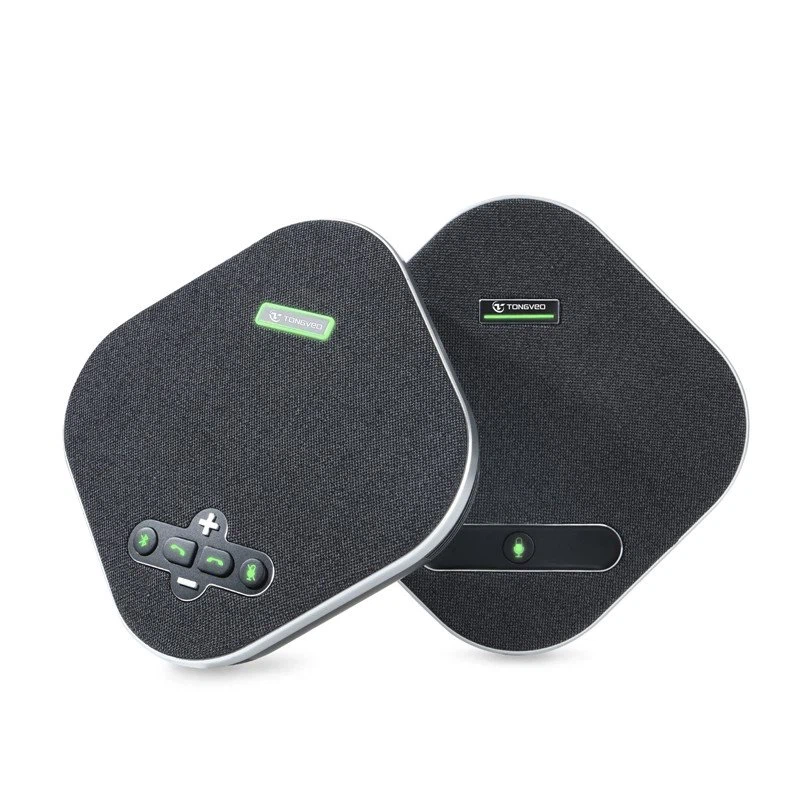
If you're looking for a great option, check out our USB Omnidirectional Conference Microphone. It's a top - notch choice for daisy chaining and works well with most computers.
Step 2: Connect the Microphones in a Daisy Chain
If you have multiple microphones, start by connecting them to each other. Most daisy chain microphones have input and output ports. Plug the output of one microphone into the input of the next one. Make sure the connections are secure; a loose connection can lead to audio issues.
Step 3: Connect the Daisy Chain to Your Computer
Once your microphones are daisy - chained together, it's time to connect the whole setup to your computer.
For USB Microphones
If you're using USB microphones, it's usually a breeze. Just plug the USB cable from the last microphone in the daisy chain into an available USB port on your computer. Your computer should automatically detect the microphone. If it doesn't, you might need to install some drivers.
On Windows, go to the "Device Manager." You can usually find it by searching in the Start menu. Look for the "Sound, video and game controllers" section. If your microphone is listed with a yellow exclamation mark, right - click on it and select "Update driver." Follow the on - screen instructions.
On a Mac, it's even simpler. Macs are generally pretty good at recognizing USB devices. Just plug in the microphone, and you should be able to select it as your input device in the "Sound" settings under the Apple menu.
For XLR Microphones
If you're using XLR microphones, you'll need an audio interface. An audio interface is a device that converts the analog audio signal from the XLR microphones into a digital signal that your computer can understand.
Connect the output of the last microphone in the daisy chain to the input of the audio interface using an XLR cable. Then, connect the audio interface to your computer via USB or Thunderbolt.
After connecting the audio interface, you'll need to configure your computer to use it. On Windows, go to the "Control Panel" and then to "Sound." Under the "Recording" tab, select the audio interface as your default recording device. On a Mac, go to the "Sound" settings and choose the audio interface as the input source.
Step 4: Test the Microphone
Once everything is connected and configured, it's time to test the microphone. Open a voice - recording app or a video - conferencing tool. On Windows, you can use the built - in Voice Recorder app. On a Mac, you can use QuickTime Player to record audio.
Speak into the microphone and check if you can hear your voice being recorded or picked up by the app. If there's no sound or the audio quality is poor, double - check your connections and settings.
Step 5: Adjust the Settings
You might need to adjust some settings to get the best audio quality. In the recording app or your computer's sound settings, you can adjust the volume level of the microphone. You can also play around with the gain settings on the audio interface if you're using XLR microphones.
Troubleshooting Tips
- No Sound: Check all the connections to make sure they're secure. Also, ensure that the microphone is not muted in your computer's sound settings or the recording app.
- Poor Audio Quality: This could be due to a loose connection, low - quality cables, or incorrect gain settings. Try replacing the cables or adjusting the gain.
- Interference: If you're getting a lot of background noise or interference, try moving the microphones away from other electronic devices, such as routers or monitors.
In conclusion, connecting a daisy chain microphone to a computer isn't too difficult once you know the steps. Whether you're using it for a business meeting, a podcast, or a music recording session, a properly connected daisy chain microphone setup can provide excellent audio coverage.
If you're interested in purchasing daisy chain microphones or have any questions about the process, don't hesitate to reach out. We're here to help you get the best audio setup for your needs.
References
- General knowledge of audio equipment and computer connections.
- Experience as a Daisy Chain Microphone supplier.





